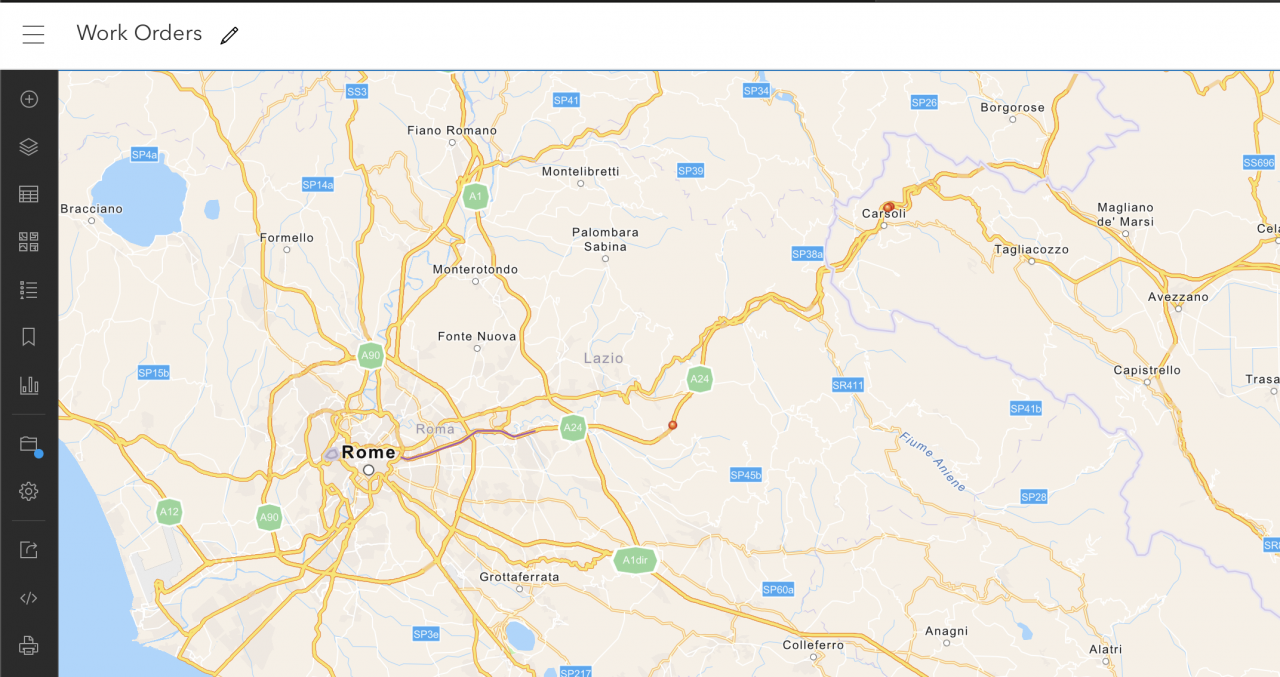
A plugin is available to integrate work orders into Esri ArcGIS for analysis and reporting in R2026c release (May 2026). The metadata and GIS data of work orders are added to ArcGIS via API. For instance, the map below shows red dots and a segment in purple for maintenance work performed in a roadway.
1. Feature Layers in ArcGIS
The first step is to set up data models in ArcGIS for integration with Calem. Feature layers in ArcGIS are used for this purpose.
- Create a feature layer for work orders performed at points of a roadway.
- Create a feature layer for work orders performed for segments of a roadway.
- Create a web map for visualization and analysis of the two layers.
- Identify work order fields to be sent over to ArcGIS.
- Crease these fields in point and line feature layers above.
Next, provision an API key for Calem integration.
- Create a dev credential including editing permission for feature layers provisioned above.
- Generate an API key for adding work orders to the feature layers.
2. Calem Plugin for ArcGIS
Next step is the setup of Calem plugin for ArcGIS integration. Define work order fields matching the data models in the feature layers above.
- The fields enabled for ArcGIS out of the box are: WO #, Asset Tag, Asset Name, Subject, Category, Route, measures (point or line), Priority, SR #, Request Time, Completed Time, and geospatial data.
- The fields are provisioned in the config file ag_wo_gen.php which may be created by coping from ag_wo_gen.dev.php at folder Calem/custom/dev/plugin/iti/.
- The config file may be modified based on the work order fields defined for integration.
Next, provision an API key and service URLs.
- Create a config file ag_notifier.php by coping from ag_notifier.sample.php.
- Define API key from ArcGIS in the config file.
- Define service URLs in the config file. They are the URLs of feature layers in ArcGIS with "addFeatures" suffix.
- For instance, the service URL for a layer is: https://services3.arcgis.com/Zjqyev8Igw8YvSAmD/arcgis/rest/services/WoPt/FeatureServer/0/addFeatures
The last step is to add the plugin to Calem.
- Copy the lines in config file calem.custom.ag.php at the plugin folder and paste into your Calem config file calem.custom.php at Calem/server/conf/calem.custom.php.
- The plugin includes a work order event encoder and a listener to send data to ArcGIS.
3. Data Change Event and Listener
The plugin is connected to ArcGIS through the data change framework in Calem.
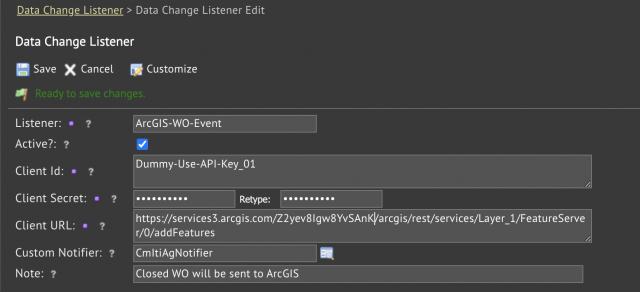
- Create a data change listener which is the default ArcGIS API entry point.
- Menu: Admin | Open | Data Change Listeners
- Add a listener with a dummy client Id and client secret. Instead of client Id and client Secret, the plugin uses the API key configured above.
- Set the client URL to be the default service URL of a feature layer. For instance, the service URL of point feature layer is the default one.
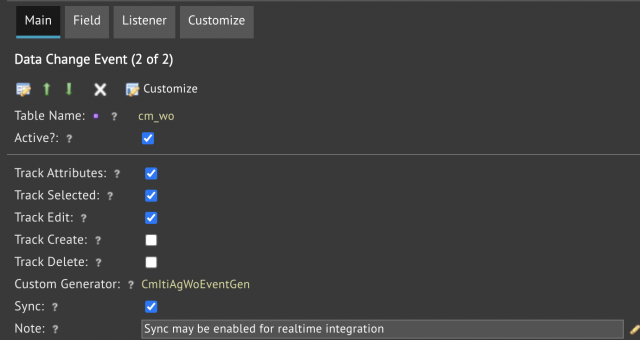
Next, provision a work order change event for work order status changes.
- Menu: Admin | Open | Data Change Event
- Create a new event for work order table (cm_wo) - screenshot below.
- Set Track Attributes, Track Selected and Track Edit
- Optionally set Sync for real-time integration. Otherwise, the integration process runs every 4 minutes.
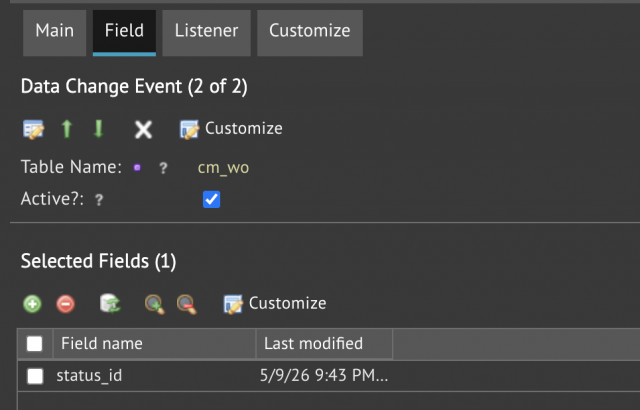
- Go to Field tab, add Status field to be tracked - next screenshot.
- Go to Listener tab, link the event to the data change listener configured above - next screenshot.

Finally, provision a cron job to execute the integration process of the plugin every 4 minutes if "Sync" is not checked in the event setup - see Admin Guide for more info.
Additional Resources
- Calem Integration 4a: How to Implement ERP Integration
- Calem Integration 4: Subscribing to Data Changes via REST API
- Calem Integration Part II: REST API
- Calem Enterprise REST API Guide (customer account required)
- User Guide and Admin Guide (customer account required)
- Calem Enterprise Training Site
- Calem Enterprise Blogs
- Calem Enterprise demo