Calem Blogs
Blogs of CalemEAM
Part II: Get Data from Calem in Power BI
Calem connector for Power BI enables fetching any table or view from Calem in R2026h (November 2026) so clients can create own dashboards. Work orders (cm_wo) are fetched from Calem to Power BI in the screenshot below.
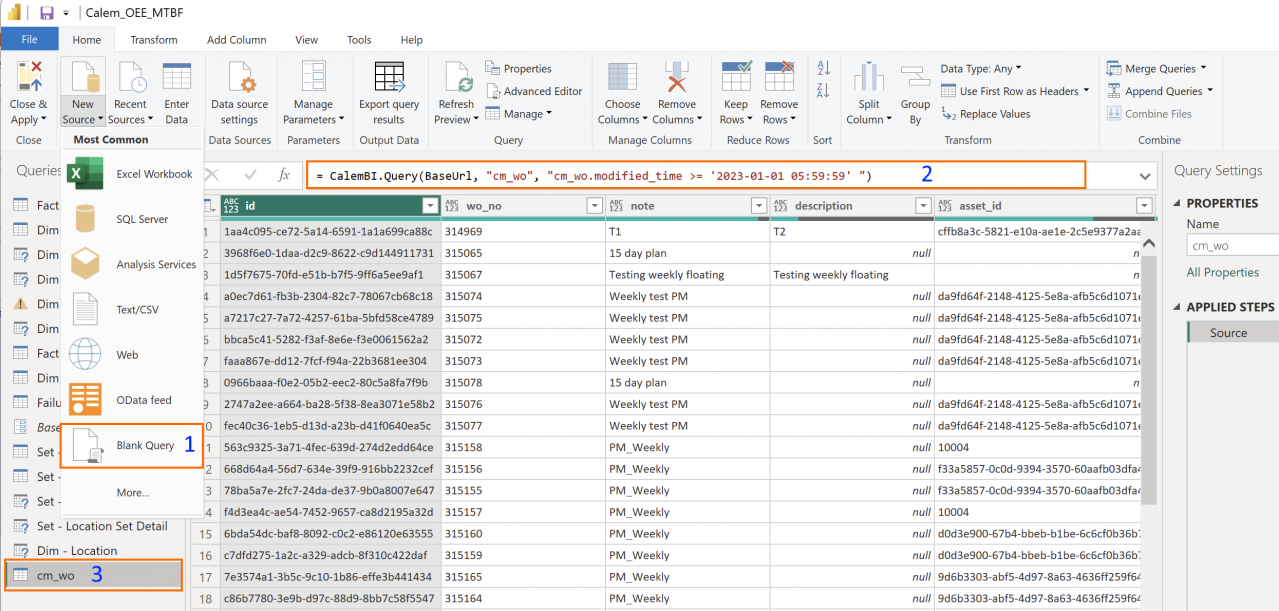
Here are the steps to add data from Calem in Power BI Desktop.
- Go to Home | Transform data | Edit parameters, set BaseUrl for your Calem. For instance,
https://acme.calemeam.com/api/search
- Next, launch Transform Data screen: Home | Transform data | Transform data
- Open a query window to fetch a data object (a table or view): Home | New source | Blank query (1 in screenshot above). Enter a query clause including table or view name (see the list of tables and views at Calem: Admin | Report | Data Dictionary), and optionally a where clause (the "w" parameter in Calem REST API for data search).
- The query below fetches work orders from 1/1/2023. Calem stores datetime in GMT time zone. For instance, for US Central dashboards, query time '2023-01-01 05:59:59' is 0:00 am (2 in screenshot above).
- Right click on the query at the bottom left and rename it to "cm_wo" (3 in the screenshot above)
= CalemBI.Query(BaseUrl, "cm_wo", " cm_wo.modified_time >= '2023-01-01 05:59:59' ")
- You may repeat the process to bring in more objects from Calem.
- The query below fetches all rows in department table (cm_dept) without a parameter to filter data.
- Rename the query to "cm_dept".
= CalemBI.Query(BaseUrl, "cm_dept")
Additional Resources
- Part 1: Transform Calem Data into KPIs with Power BI
- Introducing the New Reporting Module in Calem
- Making a Shared Search Required
- How to Use the Calendar View for Work Orders
- How to Set Up Map Views in Calem
- How to Visualize Work Orders by Open WO Chart
- Work Order Logbook
- How to Manage Asset Relationship in Calem
- Dashboard Module Training
- PM Module Training
- Work Order Module Training
- How to Manage Resource Schedules
- How to Do Weekly Schedules by Teams
- User Guide and Admin Guide (customer account required)
- Calem Enterprise Training Site
- Calem Enterprise Blogs
- Calem Enterprise demo
About the author

By accepting you will be accessing a service provided by a third-party external to https://eam.calemeam.com/