Calem Blogs
A KPI for Purchase Orders and Budgets
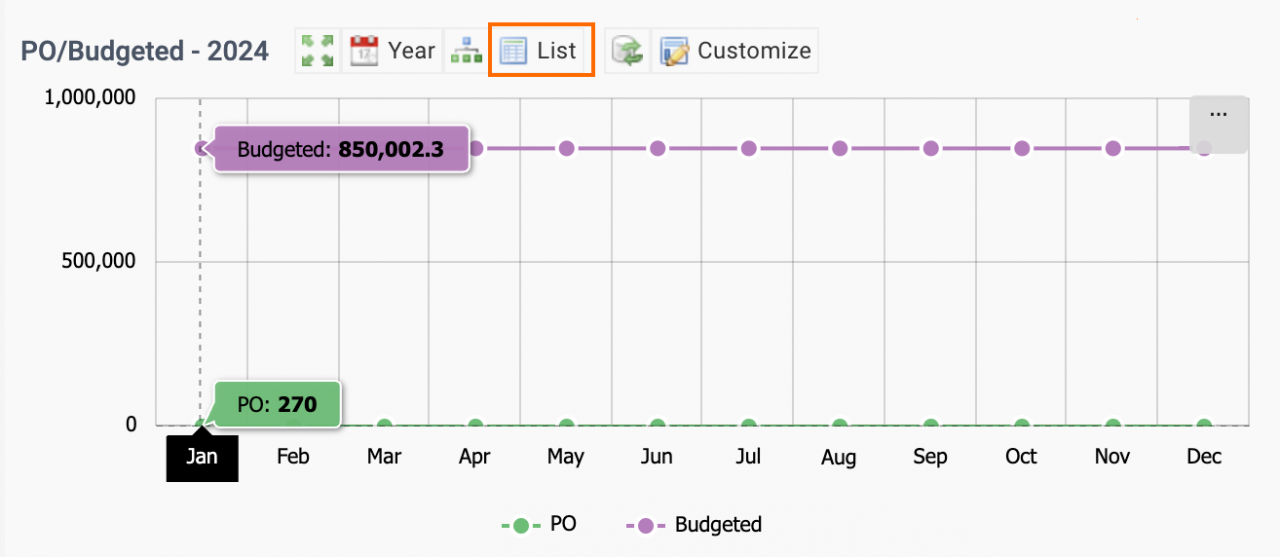
A new KPI for purchase orders (POs) and budgets is available in the coming release of R2024 in February 2024. It provides an insightful look into the total spending versus the budgets.
- Committed POs (approved) are included in the KPIs.
- Click "List" menu to drill down to items purchased.


2. Multi-Site KPI
The dashboard supports site by site comparison.
- Click "Multi-Site KPI" menu to drill down into sites.

3. KPIs for POs
This KPI can be used with the other KPIs to get better insights of POs.
- POs and receipts from vendors
- Value and quantities received from vendors
- Budgets and actual use in maintenance
- Budgets and POs (this KPI)

4. Actual Use in Maintenance
Actual use in maintenance is the net of checkouts minus returns for a reporting period. The calculation is performed by Calem. You may manually calculating them in the following steps:
- Report menu: Inventory | Tran. Reports | Transactions/Valuation
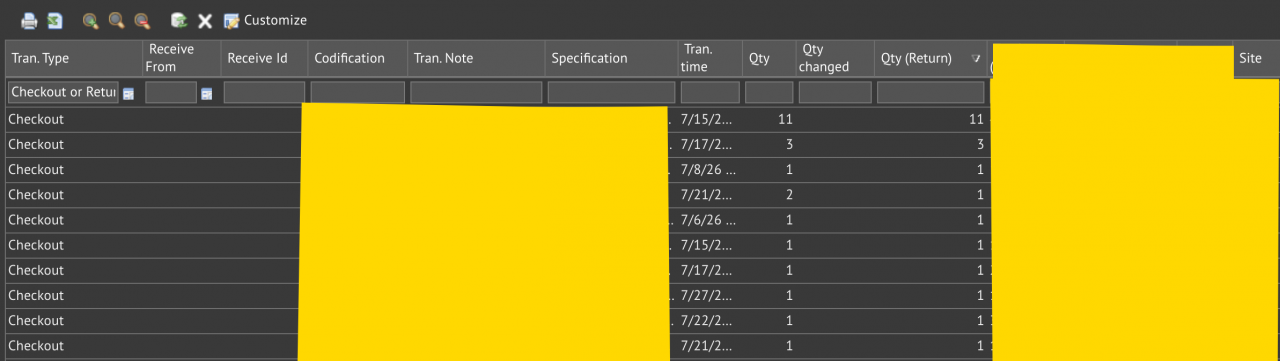
- Select the date range to report. Then, click the button under "Tran. Type" to select only "Checkout"/"Return to storeroom" transactions. Export the list to Excel.
- Parts checked out in the reporting period (July 2026) may be returned in a future time as shown in Qty (Return) column. The column of Qty (Return) does not show in the transaction report out of the box. You may customize the list view to show the column.
- The total checkout is: Qty * Unit Price, which shows the total checkout value for the reporting period.
- Do not use "Total (Net Issued)" to count total checkout for the reporting period since returns may happen in a future reporting period, leading to incorrect total checkouts for a reporting period.
- The net checkout for a reporting period is: Total Checkout - Total Return to Storeroom, within the reporting period.
5. Finding Returns and Checkouts
This step may be useful if you want to find out when a return is done for a checkout. Here're the steps:
- Report menu: Inventory | Tran. Reports | Transactions/Valuation
- Select the date range to report. Then, click the button under "Tran. Type" to select only "Checkout"/"Return to storeroom transactions".
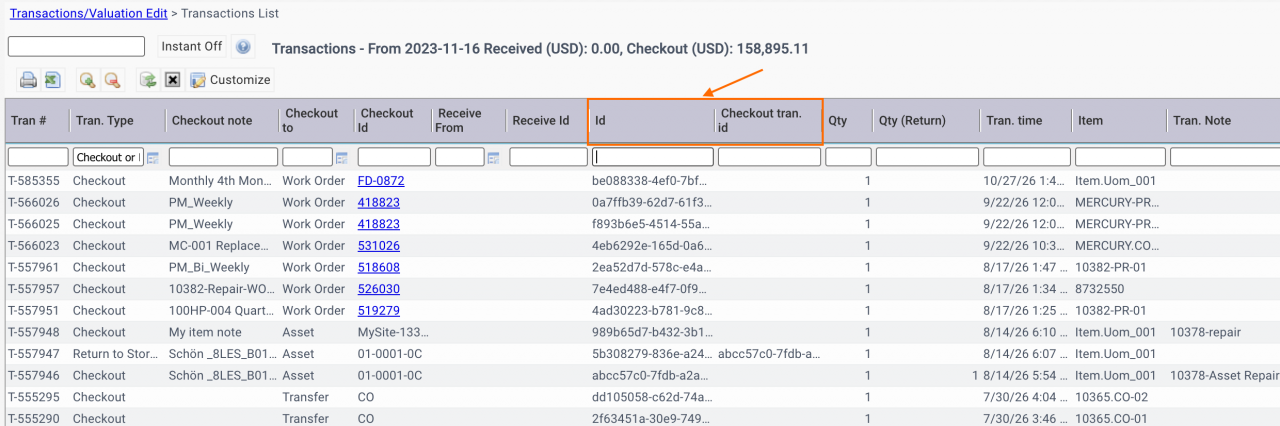
- Customize the list to show "Id" which is the Id of a transaction, and "Checkout tran. Id" which is the checkout transaction for a return transaction (screenshot below). The field is empty if there is no return.
- You may find the return transactions by searching checkout transaction Id column (next screenshot) for a checkout transaction.
- Or, find the checkout transaction by searching Id column for a return transaction (next screenshot).
- Note that the search of return transactions may be empty in your reporting period. Expand the start and end time to include more transactions, then repeat the search process.


Additional Resources
- Multi-Site KPIs for Inventory
- Multi-Site KPIs for Maintenance
- Part Repair Processes in Calem
- How to Track Asset Off-Site Repairs
- How to Use Price Lot in Calem
- Work Order Life-Cycle Diagrams
- Asset Tracking in Calem
- User Guide and Admin Guide (customer account required)
- Calem Enterprise Training Site
- Calem Enterprise Blogs
- Calem Enterprise demo
About the author

Related Posts
By accepting you will be accessing a service provided by a third-party external to https://eam.calemeam.com/